Quick answer
Allow notifications for Messenger in your phone’s settings, and turn off Focus or Do Not Disturb. Then in Messenger, go to Menu > Settings > Notifications & sounds and turn off Do not disturb (on Android, check the switch next to On is on). If only one chat is silent, it’s probably muted: unmute it from the chat list or the chat’s name.
Does this match what you see?
- Messages arrive, but there’s no sound or banner.
- Only one chat or group chat never alerts you.
- Notifications show “New message” without the text.
- You don’t get alerts for your other logged-in account.
iPhone & iPadAndroidComputer (browser)
Based on Meta’s Messenger Help pages “Turn Messenger notifications on or off” (computer, iPhone, iPad and Android versions), group chat notifications, and Android bubbles. Phone menu names vary by device.
Why this happens: the possible causes
Where a missing alert is usually switched off.
| What you see | Likely setting | Fix |
|---|---|---|
| No Messenger alerts at all | Phone settings, Focus, or Messenger’s Do not disturb | Phone settings, then Do not disturb |
| One chat or group is silent | That conversation is muted | Unmute it |
| Alerts without message text | Previews are off | Previews |
- Phone notifications off for MessengerCheck this first
Messenger needs permission to notify you, and Focus, Do Not Disturb or battery saving can silence or delay alerts.
- Do not disturb in MessengerCheck this first
Meta lets you turn off alerts for all conversations for a chosen time.
- A muted chat or groupCheck this first
Meta says muting a group stops notifications for its messages, reactions and mentions.
Try these 60-second checks first
- Send yourself a test message from a friend and keep your phone locked.
- Make sure Focus or Do Not Disturb isn’t on.
- Update Messenger to the latest version.
How to fix it, step by step
Work through these in order. They start with the quickest, safest checks and only move to steps that sign you out or remove data later.
Fix 1: Allow notifications for Messenger on your phone
If the phone blocks Messenger’s alerts, nothing inside the app can bring them back.
iPhone & iPad
- Open Settings > Notifications > Messenger.
- Turn on Allow Notifications, and check Sounds and the alert styles.
- Turn off Focus or Do Not Disturb if it’s on.
Android
- Open Settings > Notifications > App notifications > Messenger (names vary).
- Turn notifications on, including the categories for messages.
- Check Do Not Disturb and battery-saving settings aren’t limiting Messenger.
For a fuller phone checklist (Background App Refresh, Data Saver and more), see Facebook notifications not working: the same steps apply to Messenger as a separate app.
Did it work? A test message shows a banner and plays a sound.
Did Fix 1 solve it?
Great, you fixed it with Fix 1. Tell us it worked, or bookmark this page in case it happens again.
Fix 2: Turn off Do not disturb in Messenger
Meta’s Do not disturb silences alerts for all conversations for the time you choose.
iPhone & iPad
- Tap Menu > Settings > Notifications & sounds.
- Turn off Do not disturb.
Android
- Tap Menu > Settings > Notifications & sounds.
- Check the switch next to On is turned on.
Computer (browser)
- On messenger.com, click your profile picture (bottom left) > Preferences.
- Under Notifications, check Do not disturb is off.
Did it work? Alerts return for all chats.
Did Fix 2 solve it?
Great, you fixed it with Fix 2. Tell us it worked, or bookmark this page in case it happens again.
Fix 3: Unmute a chat or group
Meta says turning off notifications in a group chat stops alerts for its messages, reactions and mentions.
iPhone & iPad
- One chat: in Chats, swipe left on the conversation > More > Mute to change it.
- Group: open the group, tap its name at the top, and if it shows Unmute, tap it.
Android
- One chat: tap and hold the conversation > Mute to change it.
- Group: tap the group’s name (or Information) > Notifications & sounds, and check the switches for Messages, Mentions, Reactions, Calls and On.
Computer (browser)
- On messenger.com, hover over the chat > Options > Mute notifications, and change what’s muted.
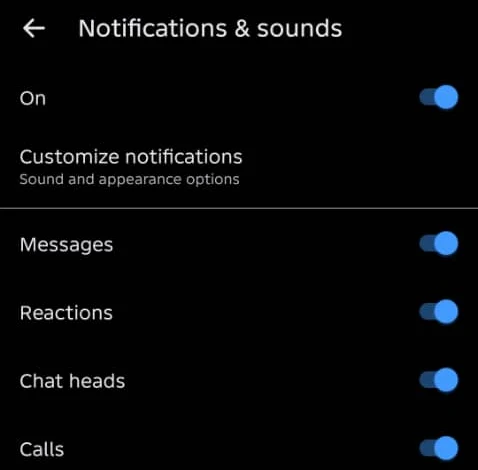
On Android in November 2026, one chat’s Notifications & sounds (tap the name at the top of the chat) had its own On switch plus Messages, Reactions, Chat heads and Calls.
Did it work? That chat alerts you again.
Did Fix 3 solve it?
Great, you fixed it with Fix 3. Tell us it worked, or bookmark this page in case it happens again.
No message text, custom sounds, and second accounts
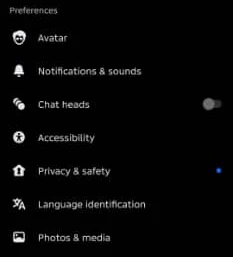
- Where the settings are (Android): Menu > Settings, then Notifications & sounds under Preferences (see the screenshot).
- No message text in alerts? Meta says turn on Show previews (iPhone or iPad) or Notification previews (Android) under Menu > Settings > Notifications & sounds.
- Two accounts on one device? Meta says turn on Notifications when logged out under Notifications & sounds to get alerts for the account you’re not using.
- Different sound for one chat (iPhone or iPad): open the chat, tap the name at the top > Notifications & sounds > Text tone. On Android, Meta says use Customize notifications, which opens your device’s sound settings.
- Communities and channels (iPhone or iPad): under Notifications & sounds > Communities and channels, check the New messages and activity and Invites switches.
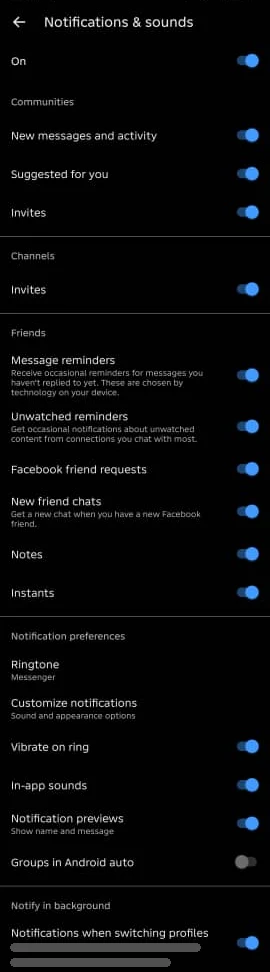
On Android in November 2026, Notifications & sounds started with one main On switch (if it’s off, nothing else matters), then switches grouped under Communities, Channels and Friends (such as Message reminders, Facebook friend requests, New friend chats, Notes and Instants), and Notification preferences: Ringtone, Customize notifications, Vibrate on ring, In-app sounds and Notification previews (“Show name and message”). At the bottom, Notifications when switching profiles keeps alerts coming for your other profile.
Chat bubbles not appearing (Android)
Meta says bubbles (a circle with your friend’s profile picture that pops up over other apps) are available on Pixel phones with Android 11 or higher. If you don’t see the feature, Meta says to update your Android device.
- Tap Menu > Settings > Bubbles.
- Choose All conversations can bubble (or Nothing can bubble to turn them off).
Drag a bubble to the bottom of the screen to close it.
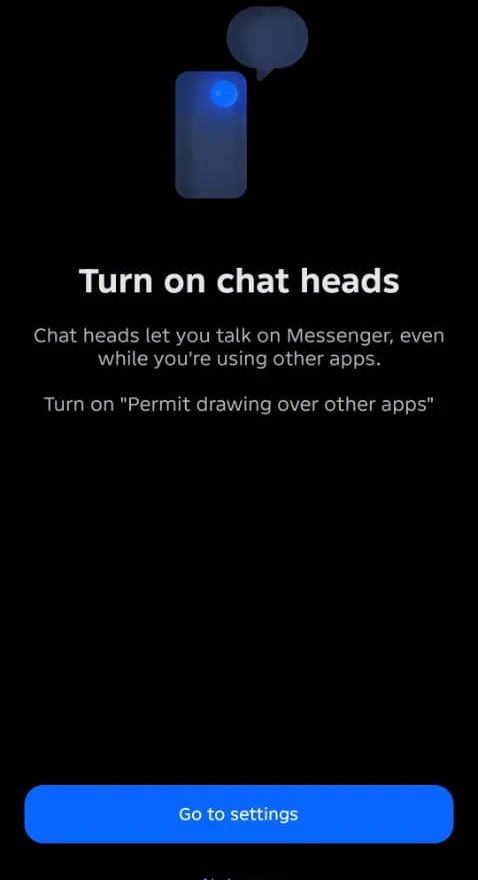
Chat heads (on other Android phones): when we tapped Open chat head in November 2026, Messenger asked to turn on “Permit drawing over other apps” with a Go to settings button. Chat heads won’t pop up until that phone permission is on.
How to know it worked
- A test message shows a banner, plays a sound and includes a preview if you want one.
Still not working? Your next steps
- Messages not arriving at all? See Messenger not sending messages. App crashing? See Messenger not working.
- Missing messages from people you don’t know? They may be in message requests.
Official help routes
SocialAppFix can’t see or change your account. For account decisions, recovery and appeals, only the platform’s own tools can help. These links go to the official sites.
Frequently asked questions
Why am I not getting Messenger notifications?
Check that your phone allows notifications for Messenger, that Focus or Do Not Disturb is off, and that Messenger’s own Do not disturb is off under Menu > Settings > Notifications & sounds.
Why don’t I get notified for one group chat?
It’s probably muted. Meta says turning off notifications in a group stops alerts for its messages, reactions and mentions. Open the group, tap its name and unmute it.
How do I see the message text in Messenger notifications?
Meta says turn on Show previews (iPhone or iPad) or Notification previews (Android) in Settings > Notifications & sounds.
Why aren’t Messenger chat bubbles showing on my Android?
Meta says bubbles are available on Pixel phones with Android 11 or higher. Turn them on in Menu > Settings > Bubbles > All conversations can bubble.
Did this solve your problem?
Your answer stays in your browser — nothing is sent or stored. The “tell us” link opens your own email app.
Out of date or didn’t work? Email us — never include passwords or codes.
Sources and how we checked this guide
We base steps on the platforms’ own help pages and the phone makers’ official guides. Menu names change often and can differ by device, app version and region. Where a platform page could not be independently read, we link it so you can check the current wording yourself.
- Turn Messenger notifications on or off (external site, opens in a new tab)
- Turn group chat notifications on or off on Messenger (external site, opens in a new tab)
- Android bubbles on Messenger (external site, opens in a new tab)
Last reviewed 7 November 2026 by the SocialAppFix editorial team against the sources above. Next scheduled review: 7 May 2027. Editor: Michael Michael. How we write and review guides.
What changed
- 11 November 2026: Added per-chat notification switches and the chat heads permission screen. Added the full Android Notifications & sounds screen.
- 11 November 2026: Added the Android Settings menu screenshot.
- 7 November 2026: First published. Notifications section moved here from Messenger not sending messages, with previews, custom sounds and channel settings added.
SocialAppFix is an independent guide and is not affiliated with or endorsed by Meta or Messenger. We never ask for passwords, login codes or payment to fix an account.