Quick answer
Messenger app: tap Menu > Message requests. messenger.com: click Requests on the left. facebook.com: click Messenger (top right) > Options next to Chats > Message requests. Replying connects you and moves the chat to your Chats list. Meta says unanswered requests may be deleted automatically after more than 6 months.
Does this match what you see?
- Someone says they messaged you, but it’s not in your chats.
- Photos or videos in a message are hidden.
- An old message request has disappeared.
- Strangers can message you and you want to stop it.
iPhone & iPadAndroidComputer (browser)
Based on Meta’s Help pages “See and delete message requests on Messenger” (computer, iPhone, iPad and Android versions), “About message requests on Facebook”, “Messages you’ll get on Facebook” and message delivery settings.
Why this happens: the possible causes
Who goes straight to your Chats, and who goes to requests (Meta).
| Sender | Where it goes |
|---|---|
| Facebook friends | Your Chats |
| People on Marketplace and Facebook Dating | Your Chats |
| Businesses or Pages you’ve already connected with, and people replying to your Messaging Ads | Your Chats |
| Anyone else you haven’t chatted with before | Message requests |
| New group chat requests | Not your Chats list |
| Likely spam | May be filtered out of requests |
- You’re not connected with the senderCheck this first
Meta says anyone you haven’t chatted with (apart from the exceptions in the table) can only send a request, and can’t call you until you reply.
- It was filtered as spamPossible
Meta says messages it thinks are spam are filtered out of your requests. This doesn’t affect messages from your Facebook friends.
- It was auto-deletedPossible
Meta says requests not accepted or answered in more than 6 months may be deleted automatically.
Try these 60-second checks first
- Check Message requests on the device you use most.
- Ask the sender whether you’re Facebook friends.
How to fix it, step by step
Work through these in order. They start with the quickest, safest checks and only move to steps that sign you out or remove data later.
Fix 1: Find your message requests
Requests are kept separate from your main Chats.
iPhone & iPad
- In the Messenger app, tap Menu > Message requests.
- Tap a request to reply (which connects you), or choose Delete or Block. For a group request: Delete or Leave.
Android
- In the Messenger app, tap Menu > Message requests.
- Tap a request to reply (which connects you), or choose Delete or Block. For a group request: Delete or Leave.
Computer (browser)
- messenger.com: click Requests on the left.
- facebook.com: click Messenger in the top right, then Options next to Chats > Message requests.
- Click the sender’s name, then reply, Block or Delete.
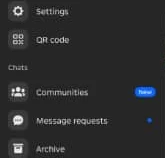
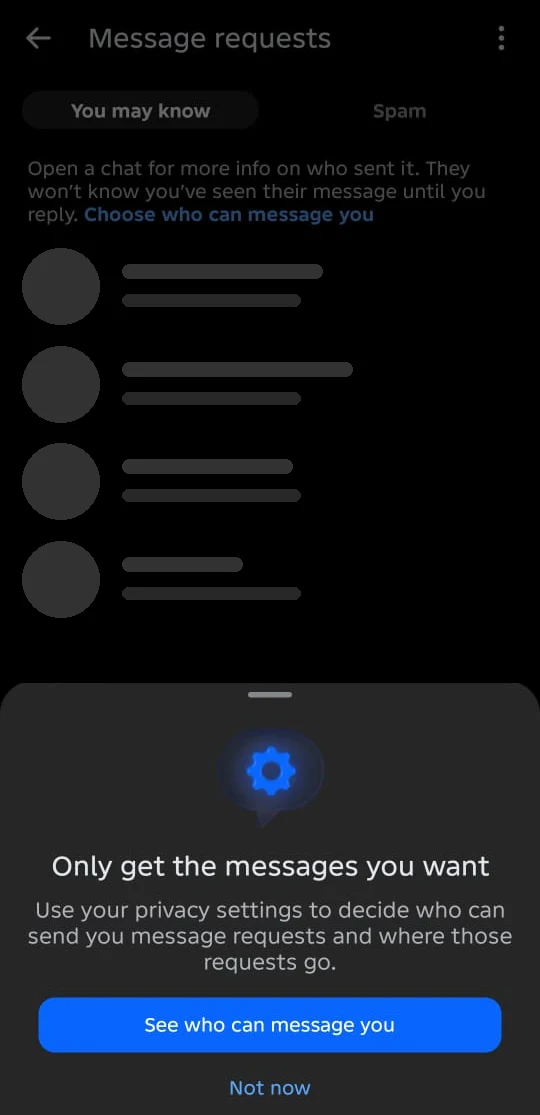
On Android in November 2026, Message requests had two tabs, You may know and Spam, and said: “Open a chat for more info on who sent it. They won’t know you’ve seen their message until you reply.”
Did it work? You can see the request, and replying moves it to your Chats list.
Did Fix 1 solve it?
Great, you fixed it with Fix 1. Tell us it worked, or bookmark this page in case it happens again.
Fix 2: Delete message requests
Meta says once you delete a request, you won’t be able to see that message again.
iPhone & iPad
- Swipe left on the request > Delete, then Delete to confirm.
- Tap Edit to delete several at once, or Mark as read instead.
Android
- Tap and hold the request > Delete, then Delete to confirm.
- Tap Edit to delete several at once, or Mark as read instead.
Computer (browser)
- On messenger.com, hover over the request > Options > Delete chat > Delete chat to confirm.
Deleted one by mistake? Meta says you can still message the person yourself.
Did it work? The request is gone from your list.
Did Fix 2 solve it?
Great, you fixed it with Fix 2. Tell us it worked, or bookmark this page in case it happens again.
Hidden photos and disappearing requests
- Photos or videos hidden? Meta hides media from people you’re not connected with. Replying connects you and shows it.
- Old requests gone? Meta says requests not accepted or answered in more than 6 months may be deleted automatically. To keep a copy, download your message data (external site, opens in a new tab) first.
- Spam: Meta says likely spam may be filtered out of your requests, even from people you’ve allowed, but not messages from Facebook friends.
Choose who can message you
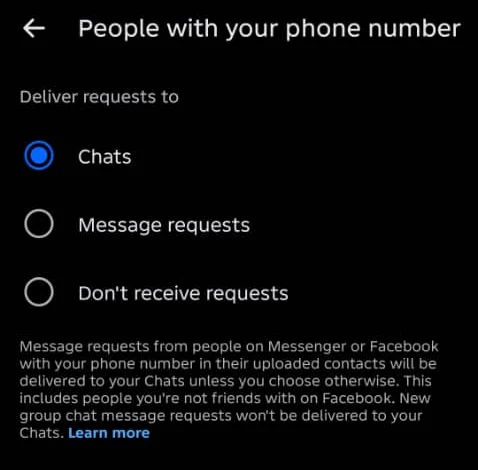
Meta says go to Menu > Settings > Privacy & safety > Message delivery in the phone app. Tap a group (such as friends of friends, people with your phone number, or everyone else) and choose whether their messages go to your Chats, your message requests, or Don’t receive requests. Meta notes that someone with your phone number doesn’t need to be your Facebook friend to reach you.
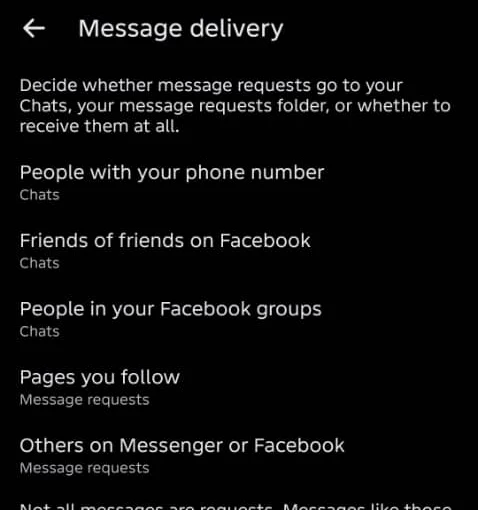
On Android in November 2026, our Message delivery screen listed five groups: People with your phone number, Friends of friends on Facebook, People in your Facebook groups, Pages you follow, and Others on Messenger or Facebook. What the screens said:
- “Not all messages are requests. Messages like those from Facebook friends and Marketplace go to your Chats.”
- Others on Messenger or Facebook only offers Message requests or Don’t receive requests (no Chats option), and conversations “that might go against our Community Standards, will be delivered to spam.”
- People in your Facebook groups: “Your choice only affects message requests from people in your private Facebook groups.”
- Pages you follow: requests go to your Message Requests folder “unless you choose otherwise.”
- Group message requests from friends of friends or people with your number “won’t be delivered to your Chats.”
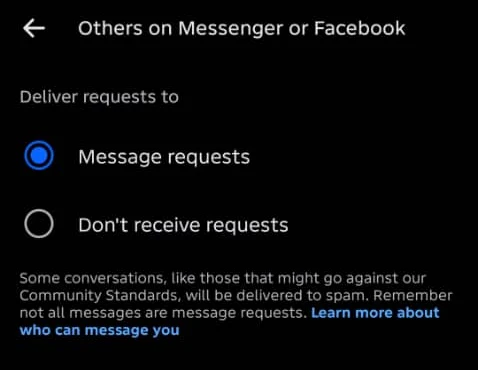
Our tip: if a stranger’s messages are bothering you, set Others on Messenger or Facebook to Don’t receive requests. Expecting a message that never arrived? Check Message requests and spam before assuming it wasn’t sent.
Teen Account? Some settings are more protective
Meta says Teen Accounts (ages 13–17, currently only in some locations) are automatically set to more protective message delivery settings, so by default teens only chat with Facebook friends and other connections, and only get message requests from people who have their phone number. Parents with supervision can manage these settings in Family Center. See Messenger Teen Accounts and supervision.
Someone bothering you? See block someone on Messenger.
How to know it worked
- You can find and answer requests, and only the people you choose reach your Chats.
Still not working? Your next steps
- Messages from friends missing too? See Messenger not sending messages. Marketplace messages? See find Marketplace messages.
Official help routes
SocialAppFix can’t see or change your account. For account decisions, recovery and appeals, only the platform’s own tools can help. These links go to the official sites.
- Meta Help: See and delete message requests on MessengerFacebook Help Center (external site, opens in a new tab)
- Meta Help: About message requests on FacebookFacebook Help Center (external site, opens in a new tab)
- Meta Help: Messages you’ll get on FacebookFacebook Help Center (external site, opens in a new tab)
- Messenger Help: Control who can message youFacebook Help Center (external site, opens in a new tab)
Frequently asked questions
Where are my message requests on Messenger?
In the app, tap Menu > Message requests. On messenger.com, click Requests on the left. On facebook.com, click Messenger (top right) > Options next to Chats > Message requests.
Why did a message go to requests instead of my chats?
Meta says by default, Facebook friends, Marketplace and Dating contacts, businesses you’ve connected with and people replying to your Messaging Ads go straight to Chats. Others send a request, unless you change Message delivery settings.
Why are photos hidden in a message request?
Meta hides media from people you’re not connected with to protect you from spammers. Replying connects you and shows it.
Do message requests expire?
Meta says requests not accepted or answered in more than 6 months may be deleted automatically.
Can I get back a deleted message request?
Meta says you won’t be able to see that message again, but you can message the person yourself.
Did this solve your problem?
Your answer stays in your browser — nothing is sent or stored. The “tell us” link opens your own email app.
Out of date or didn’t work? Email us — never include passwords or codes.
Sources and how we checked this guide
We base steps on the platforms’ own help pages and the phone makers’ official guides. Menu names change often and can differ by device, app version and region. Where a platform page could not be independently read, we link it so you can check the current wording yourself.
- See and delete message requests on Messenger (external site, opens in a new tab)
- About message requests on Facebook (external site, opens in a new tab)
- Check your message requests on Facebook (external site, opens in a new tab)
- Messages you’ll get on Facebook (external site, opens in a new tab)
- Control who can message you on Messenger (external site, opens in a new tab)
Last reviewed 7 November 2026 by the SocialAppFix editorial team against the sources above. Next scheduled review: 7 May 2027. Editor: Michael Michael. How we write and review guides.
What changed
- 11 November 2026: Added the Android Message requests screen with You may know and Spam tabs. Added the five Message delivery groups and Android screenshots.
- 7 November 2026: First published. Message requests section moved here from Messenger not sending messages.
SocialAppFix is an independent guide and is not affiliated with or endorsed by Meta or Messenger. We never ask for passwords, login codes or payment to fix an account.