Quick answer
Go to your profile and tap your profile picture (on a computer, click the camera at its bottom right), choose or upload a photo, then follow the on-screen steps to save. On a computer, iPhone or Android you can also use Settings & privacy > Settings > Accounts Center (on a computer, See more in Accounts Center) > Profiles > your profile > Profile picture. If it won’t change, Meta suggests updating or restarting the app, checking your data or Wi-Fi connection, and refreshing the page, then reporting the problem (external site, opens in a new tab). With Meta Verified, use Meta’s separate steps (external site, opens in a new tab).
Does this match what you see?
- You can’t find the camera or option to change your profile picture.
- The new picture won’t upload or save.
- The change spins, fails or the old picture stays.
- You have Meta Verified and the usual steps don’t work.
iPhone & iPadAndroidComputer (browser)
Steps come from Meta’s help page for each device, including iPad, Facebook Lite and mobile browsers. Meta is gradually moving people to Meta Accounts, so you may see Meta Account settings instead of Accounts Center.
Why this happens: the possible causes
Start with the line that matches what you see.
| What you see | Possible cause | Do this |
|---|---|---|
| No option to change it | The button is the camera (computer) or the picture itself (apps) | Change it from your profile |
| You have Meta Verified | Meta Verified has different steps | Meta Verified |
| It won’t save or upload | Try Meta’s tips: latest app, reliable connection, refresh | Fixes when it won’t save |
| Still stuck after that | A problem to report to Facebook | Report it |
- Looking for the wrong buttonPossible
On a computer, Meta’s steps use the camera at the bottom right of your profile picture; in the apps you tap the picture itself.
- The app or connectionPossible
Meta’s tips when you’re having trouble are to use the latest app version or restart the app, use a reliable data or Wi-Fi network, and refresh the page.
- You have a Meta Verified subscriptionPossible
Meta says the steps for updating your profile picture are different with Meta Verified.
Try these 60-second checks first
- Open your own profile, then tap your profile picture (or the camera on a computer).
- Update the Facebook app, or close and reopen it.
- Switch to a reliable Wi-Fi or data connection.
- Refresh the page or screen and try again.
How to fix it, step by step
Work through these in order. They start with the quickest, safest checks and only move to steps that sign you out or remove data later.
Fix 1: Change it from your profile (Meta’s steps)
This is Meta’s main route on every device. You can pick a new or existing photo, or add a frame.
iPhone & iPad
- Go to your profile: tap your profile picture at the bottom right of your Feed, or tap Menu (top left), then your name. (On an iPad, tap Menu in the top left, then your name.)
- Tap your profile picture.
- Choose a profile picture or add a frame. On iPhone you may also see Import from Instagram, Restyle or Animate your profile picture with Meta AI.
- Follow the instructions on the screen to save your changes.
Android
- Go to your profile: tap your profile picture at the bottom right of your Feed, or tap Menu (top left), then your name.
- Tap your profile picture.
- Choose a profile picture, or add a frame to an existing one.
- Follow the instructions on the screen to save your changes.
Computer (browser)
- Click your profile picture in the top right of Facebook, then click your profile name.
- Click the Camera at the bottom right of your profile picture.
- Select a photo or upload a new one, or add a frame (external site, opens in a new tab) to your existing picture.
- Follow the instructions on the screen to save your changes.
In Facebook Lite, tap Menu (top right) > your profile picture, then add a frame, take a new picture, upload a photo or select one on Facebook. In a mobile browser, tap Menu (top right) > your profile picture > Add Frame or Select photo on Facebook > Update. Meta also lets you animate a still profile picture from a set of presets. Want to adjust the photo first? See Meta’s steps to edit your photo before posting (external site, opens in a new tab).
Did it work? Your new picture shows on your profile.
Did Fix 1 solve it?
Great, you fixed it with Fix 1. Tell us it worked, or bookmark this page in case it happens again.
Fix 2: Or change it in Accounts Center (computer, iPhone, Android)
On a computer, iPhone and Android, Meta gives a second route through Accounts Center (its iPad, Lite and mobile browser steps don’t include this route). If tapping your picture doesn’t work, it’s worth trying. You may see Meta Account settings instead, as Meta is gradually moving people to Meta Accounts (external site, opens in a new tab).
iPhone & iPad
- Tap Menu in the top left of Facebook.
- Tap Settings & privacy, then Settings.
- Tap Accounts Center, then Profiles.
- Tap the profile you want to change, then Profile picture.
- Upload a new photo, then follow the instructions on the screen to save.
Android
- Tap Menu in the top left of Facebook.
- Tap Settings & privacy, then Settings.
- Tap Accounts Center, then Profiles (on our test phone it read Profiles and personal details).
- Tap the profile you want to change, then Profile picture.
- Upload a new photo, then follow the instructions on the screen to save.
Computer (browser)
- Click your profile picture in the top right, then Settings & privacy.
- Click Settings.
- Click See more in Accounts Center, then Profiles.
- Click the profile you want to change, then Profile picture.
- Click Upload new photo, then follow the instructions on the screen to save.
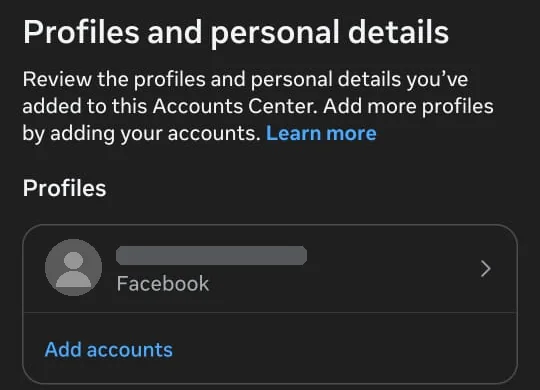
Did it work? Your new picture shows in Accounts Center and on your profile.
Did Fix 2 solve it?
Great, you fixed it with Fix 2. Tell us it worked, or bookmark this page in case it happens again.
Fix 3: Have Meta Verified? Use Meta’s separate steps
Meta says that if you have a Meta Verified subscription (external site, opens in a new tab), your steps for updating your profile picture are different.
- Follow Meta’s guide to update your profile picture with Meta Verified (external site, opens in a new tab).
- If those steps don’t work either, try Fix 4.
Meta Verified for creators (external site, opens in a new tab) is a paid subscription that includes a verified badge, impersonation protection and enhanced support. Meta says that if you verify an Instagram and a Facebook profile together, both may need similar names and pictures, so keep that in mind before changing one of them.
Did it work? You’ve followed Meta’s Meta Verified steps.
Did Fix 3 solve it?
Great, you fixed it with Fix 3. Tell us it worked, or bookmark this page in case it happens again.
Fix 4: Won’t save? Update the app, check your connection, refresh
These are Meta’s tips when you’re having trouble changing your profile picture. They’re the same on every device.
- Make sure you’re using the latest version of the Facebook app (external site, opens in a new tab), or restart the app.
- Check you’re connected to a reliable data or Wi-Fi network.
- Refresh the page and try again.
If the photo itself won’t upload, check it against Meta’s photo advice (for example, under 15 MB, and the original rather than an edited copy) in can’t upload photos to Facebook.
Did it work? Your new profile picture saves.
Did Fix 4 solve it?
Great, you fixed it with Fix 4. Tell us it worked, or bookmark this page in case it happens again.
Fix 5: Still can’t change it? Report the problem
Meta says that if you’re still unable to change your profile picture, you can report an issue.
- On a computer: your profile picture (top right) > Help & support > Report a problem.
- In the app: ☰ Menu > Help and support > Report a problem, then pick Profile on the Select product screen.
- Say what happens when you try, and which device and app version you use.
Meta’s page on reporting a problem (external site, opens in a new tab) has more detail.
Did it work? Your report is sent.
Did Fix 5 solve it?
Great, you fixed it with Fix 5. Tell us it worked, or bookmark this page in case it happens again.
Profile picture options on each device
Meta lists slightly different choices depending on where you use Facebook:
| Where | How to start | Options Meta lists |
|---|---|---|
| Computer | Camera at the bottom right of your profile picture | Select or upload a photo; add a frame |
| iPhone | Tap your profile picture | Choose a picture; add a frame; import from Instagram; restyle or animate with Meta AI |
| Android | Tap your profile picture | Choose a picture; add a frame |
| iPad | Menu (top left) > your name > your profile picture | Select a picture; add a frame |
| Facebook Lite | Menu (top right) > your profile picture | Add a frame; take a new picture; upload a photo; select a photo on Facebook |
| Mobile browser | Menu (top right) > your profile picture | Add Frame or Select photo on Facebook, then Update |
How to know it worked
- Your new picture shows on your profile.
- It also shows in Accounts Center (or Meta Account settings).
Still not working? Your next steps
- Can’t control who comments on your profile picture? See comments not showing.
- Other people’s profile pictures won’t load? See Facebook photos not loading.
- Changed your name too? See change your Facebook name.
Official help routes
SocialAppFix can’t see or change your account. For account decisions, recovery and appeals, only the platform’s own tools can help. These links go to the official sites.
Frequently asked questions
How do I change my Facebook profile picture?
Go to your profile and tap your profile picture (on a computer, click the camera at its bottom right). Choose or upload a photo, then follow the on-screen steps to save.
Why can’t I change my Facebook profile picture?
Meta’s tips are to use the latest app version or restart the app, check you’re on a reliable data or Wi-Fi connection, and refresh the page. If you have Meta Verified, the steps are different. If none of that works, report the problem.
Can I change my profile picture in Accounts Center?
Yes, on a computer, iPhone or Android. Go to Settings & privacy > Settings > Accounts Center (on a computer, See more in Accounts Center) > Profiles, choose your profile, then Profile picture. Meta’s iPad, Lite and mobile browser steps don’t include this route.
Can I animate my Facebook profile picture?
Meta says you can animate your profile picture from a set of presets, turning a still photo into a short animation that people see when they visit your profile.
Did this solve your problem?
Your answer stays in your browser — nothing is sent or stored. The “tell us” link opens your own email app.
Out of date or didn’t work? Email us — never include passwords or codes.
Sources and how we checked this guide
We base steps on the platforms’ own help pages and the phone makers’ official guides. Menu names change often and can differ by device, app version and region. Where a platform page could not be independently read, we link it so you can check the current wording yourself.
- Add or change your Facebook profile picture (external site, opens in a new tab)
- About Meta Accounts (external site, opens in a new tab)
- About Meta Verified for creators (external site, opens in a new tab)
- Report That Something Isn’t Working on Facebook (external site, opens in a new tab)
- I can’t upload photos on Facebook (external site, opens in a new tab)
Last reviewed 22 October 2026 by the SocialAppFix editorial team against the sources above. Next scheduled review: 20 April 2027. How we write and review guides.
What changed
- 22 October 2026: Added what Meta Verified is and its similar-pictures note, from help/1206202490291214.
- 22 October 2026: First published.
SocialAppFix is an independent guide and is not affiliated with or endorsed by Meta or Facebook. We never ask for passwords, login codes or payment to fix an account.