Quick answer
In the Facebook app, go to your profile, tap ⋯ at the top right to open Profile settings, and tap Profile status (on some Android phones it’s further down, under More options). On a computer, Meta’s route is your profile name > Options > Profile Status. Read the top line, then open Content removed to see what was taken down and when. If you think Meta got a decision wrong, open its message and tap Request review if it’s offered. You request it from Profile status, inside Facebook; Meta’s help pages don’t mention any fee.
Does this match what you see?
- A notice said something you posted went against the Community Standards, and you want the details.
- A feature such as posting in groups, commenting, going Live or Marketplace has stopped working.
- Profile status says “Profile has some issues”.
- You can’t find Profile status in the menu where a guide said it would be.
- You want to check your account is in good standing before selling, advertising or appealing.
iPhone & iPadAndroidComputer (browser)
Menu names and positions change between app versions. We checked the routes below on an iPhone and an Android phone in October 2026; the computer route is Meta’s own.
Why this happens: the possible causes
Profile status itself isn’t a problem. It’s where Facebook explains one. These are the things it most often records.
| What you see | What it usually means | Do this |
|---|---|---|
| Content removed, with a count and a date | Meta removed posts or comments it found went against its Community Standards | Read it, then request a review if you disagree |
| A feature is limited until a date | A restriction, usually after strikes | See Facebook jail for how long it lasts |
| Marketplace is limited or at risk | A Marketplace restriction for its Commerce Policies | Check Marketplace |
| Removed content you don’t recognize | Someone else may have used your account | Secure your account |
- Content Meta removedCheck this first
Meta says it notifies you when it removes content or adds restrictions, and that your status page shows your history of violations, some restrictions and how long they’ll last.
- A feature restriction from strikesPossible
Meta restricts features as strikes add up, from limits on specific features such as posting in groups to blocks on creating content (30 days at 10 or more strikes). Strikes count across Facebook and Instagram.
- A Marketplace limitPossible
Meta may limit or suspend Marketplace access for breaking its Commerce Policies, and warns you that access is at risk first. You check it in Profile status.
- Activity that wasn’t yoursLess likely
If the removed content isn’t something you posted, the account may have been used by someone else.
Try these 60-second checks first
- Use the Facebook app if you can: we checked the steps below there in October 2026.
- Go to your profile and tap ⋯ at the top right: Profile status is in Profile settings.
- Can’t see it? You may be able to search for it: ☰ Menu > Settings & privacy > Settings > Search settings.
- Note any end date, and what was removed, before you do anything else.
How to fix it, step by step
Work through these in order. They start with the quickest, safest checks and only move to steps that sign you out or remove data later.
Fix 1: Open Profile status
Everything else starts here. The route depends on your device and app version, so try the one for yours first.
iPhone & iPad
- Tap your profile picture to open your profile.
- Tap ⋯ at the top right (next to the pencil and search icons) to open Profile settings.
- Tap Profile status. On our iPhone it was the third item in the list.
Android
- Tap your profile picture to open your profile.
- Tap ⋯ at the top right to open Profile Settings.
- Tap Profile status. If it isn’t near the top, scroll down to the More options section.
Computer (browser)
- Click your profile picture at the top right of Facebook, then click your profile name.
- Click Options, then Profile Status (Meta’s steps).

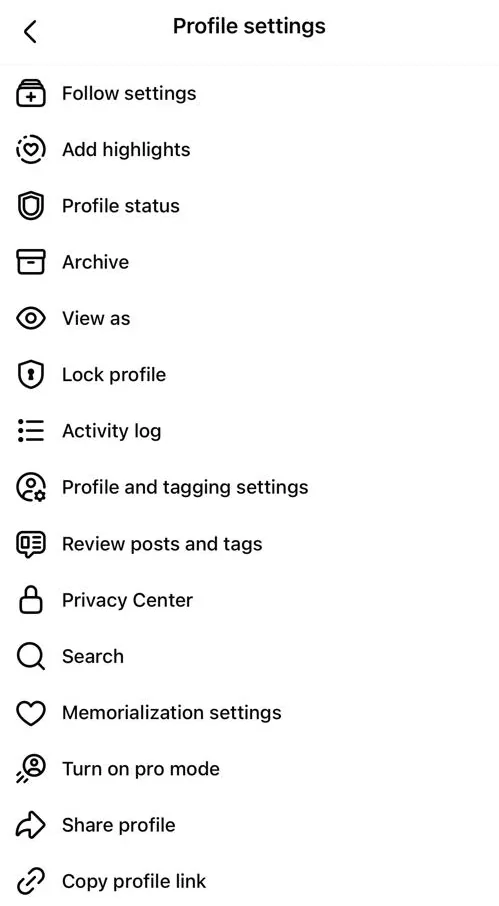
Meta’s own help pages also give the route Menu > your profile name > Options > Profile Status in the apps. If one route doesn’t match your screen, try the other, or use Fix 5.
Did it work? Profile status is open and you can see its top line.
Did Fix 1 solve it?
Great, you fixed it with Fix 1. Tell us it worked, or bookmark this page in case it happens again.
Fix 2: Read what it says, part by part
The page is short, but each part answers a different question: is something wrong, what was removed, what’s limited, and for how long.
- Read the top line. If there’s a problem, it may say “Profile has some issues”.
- Under Issues with your content, open Content removed. It shows how many items were removed and when. Open each one to see what was removed and why.
- Look under Profile features (Meta’s help calls this section Extra features) for anything limited, such as Marketplace, and any end date.
- Open History (under More about your profile) to see earlier decisions.
- Questions about what you see? Under Get help, Profile status offers a Meta AI support assistant.
Write down any end date. Restrictions lift on their own when the time is up, and Meta says strikes expire after one year. For how many strikes lead to which restriction, see Facebook jail: how long it lasts.
Did it work? You know what was removed or limited, why, and until when.
Did Fix 2 solve it?
Great, you fixed it with Fix 2. Tell us it worked, or bookmark this page in case it happens again.
Fix 3: Think Meta got it wrong? Request a review from Profile status
Meta says it usually offers the chance to ask for a review of decisions you disagree with. If it finds it made a mistake, it restores the content, and Meta says it also removes the strike and the restriction.
- In Profile status, open the message about the content that was taken down.
- Tap Request review, if it’s shown, and follow the steps. Submit once.
- Wait for a notification. Meta says it tells you whether the content is back or the decision was confirmed.
For some types of content there’s no review option, and Meta says that during busy periods it may not be able to review every request. If you still disagree after a review, you may be able to appeal some decisions to the Oversight Board, which takes only a limited number of cases. The full process is in Facebook removed your post.
Did it work? You’ve submitted the request, or you know this decision has no review option.
Did Fix 3 solve it?
Great, you fixed it with Fix 3. Tell us it worked, or bookmark this page in case it happens again.
Fix 4: Check your Marketplace status
Marketplace has its own limits for breaking the Commerce Policies. Meta says it warns you when your access is at risk, before suspending it.
- In Profile status, open Marketplace under Profile features (Meta’s help calls it Extra features).
- Read whether your access is limited or at risk, and why.
- If you can still open Marketplace on iPhone, there’s a quicker check: Marketplace > ⋯ > More options. Under Account, Marketplace status shows your access, for example “You have full access.”
- For what to do next, including Meta’s Request review and Remove your warning options, see Marketplace not showing.
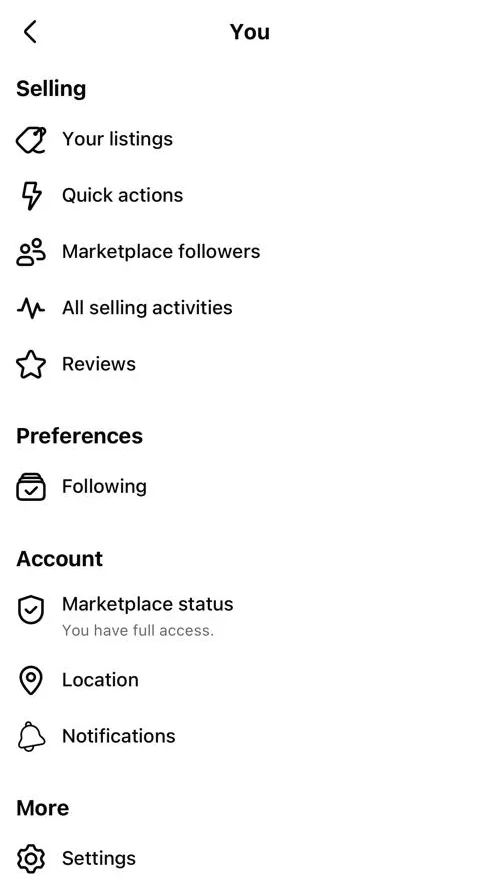
Did it work? You know whether Marketplace is available to you, limited or at risk.
Did Fix 4 solve it?
Great, you fixed it with Fix 4. Tell us it worked, or bookmark this page in case it happens again.
Fix 5: Can’t find Profile status?
Facebook moves settings between versions, and the same page has more than one name.
- You may be able to search for it: ☰ Menu > Settings & privacy > Settings, then type Profile status into Search settings at the top.
- Update the Facebook app from the App Store or Google Play, then try again.
- If you manage Pages or extra profiles, check you’ve switched back to your main profile.
- Try the computer route: profile name > Options > Profile Status.
Meta’s policy pages call this Account Status. Pages have their own Page Status: see Facebook Page restricted.
Did it work? You’ve found Profile status on at least one device.
Did Fix 5 solve it?
Great, you fixed it with Fix 5. Tell us it worked, or bookmark this page in case it happens again.
Fix 6: Removed content you never posted? Secure the account first
Content you don’t recognize under Content removed can mean someone else has access to your account. Securing it comes before any review request.
- Change your password and check Log out of other devices: Accounts Center > Password and security > Change password (on some accounts, Meta Account > Login and security).
- Check Where you’re logged in and remove anything you don’t recognize.
- Turn on two-factor authentication.
- Then request a review of the removed content (Fix 3), and add that it wasn’t posted by you if the form lets you.
- Can’t get in, or your email or phone was changed? Follow Facebook hacked.
Did it work? Only your own devices are logged in, and no new removals appear.
Did Fix 6 solve it?
Great, you fixed it with Fix 6. Tell us it worked, or bookmark this page in case it happens again.
Profile status, Support Inbox, Page Status: which one do you need?
| Page | What it’s for | Where |
|---|---|---|
| Profile status | Your personal profile: removed content, restrictions, features such as Marketplace | Profile > ⋯ > Profile settings |
| Support Inbox | Messages from Facebook, for example about your ability to post or comment in groups | facebook.com/settings?tab=support (external site, opens in a new tab) |
| Page Status | A Facebook Page you manage | See Facebook Page restricted |
| Marketplace status | Whether you can buy and sell | Marketplace > ⋯ > More options (iPhone) |
Blocked in one group only? It may be the group’s admins rather than Facebook. See can’t post in a group.
Error messages and what they mean
Wording people see in and around Profile status. Facebook changes it between versions, so match the meaning.
Profile has some issues- What it usually means
- Profile status has found something, usually removed content or a limit on a feature.
- What to do
- Open Content removed and Profile features. Fix 2
A notice that your post goes against the Community Standards- What it usually means
- Meta removed content, and it may count as a strike.
- What to do
- Check it in Profile status, and request a review if you disagree. Fix 3
A warning that your Marketplace access is at risk- What it usually means
- Meta’s warning before it suspends Marketplace access.
- What to do
- Check Marketplace in Profile status. Fix 4
How to know it worked
- You can open Profile status on your phone or computer.
- You know what, if anything, was removed or limited, and until when.
- You’ve requested a review of any decision you disagree with, where one is offered.
Still not working? Your next steps
- A feature is still blocked after its end date? Check Profile status for a newer restriction, then report it: on a computer, click your profile picture (top right) > Help & support > Report a problem.
- Your whole account is suspended or disabled? See account disabled or suspended.
- For how restrictions grow with strikes, see Facebook jail.
Official help routes
SocialAppFix can’t see or change your account. For account decisions, recovery and appeals, only the platform’s own tools can help. These links go to the official sites.
- Facebook Help: request a review of a takedown (Profile Status steps)Facebook Help Center (external site, opens in a new tab)
- Meta: Restricting accounts (Account Status)Meta Transparency Center (external site, opens in a new tab)
- Facebook Help: Marketplace access at risk, limited or suspendedFacebook Help Center (external site, opens in a new tab)
Frequently asked questions
Where is Profile status on Facebook?
In the app, go to your profile and tap ⋯ at the top right to open Profile settings, then tap Profile status (on some Android phones it’s under More options). On a computer, click your profile name > Options > Profile Status.
What does “Profile has some issues” mean?
Facebook has recorded something about your profile, usually content it removed or a limit on a feature. Open Content removed and Profile features in Profile status to see what and until when.
Is Profile status the same as Account Status?
They appear to be the same page: Meta’s policy pages describe it as Account Status, while the app and Meta’s help steps call it Profile status.
Does Profile status show strikes?
Meta says your status page shows your history of violations, some restrictions and how long they’ll last. For how strikes are counted, see Facebook jail: how long it lasts.
Can someone else check or fix my Profile status for me?
No. Meta shows your status only inside Facebook, and its help pages don’t mention any fee for a review. Anyone offering to clear your status for a fee, or asking for your password or a code, is running a scam.
Did this solve your problem?
Your answer stays in your browser — nothing is sent or stored. The “tell us” link opens your own email app.
Out of date or didn’t work? Email us — never include passwords or codes.
Sources and how we checked this guide
We base steps on the platforms’ own help pages and the phone makers’ official guides. Menu names change often and can differ by device, app version and region. Where a platform page could not be independently read, we link it so you can check the current wording yourself.
- I don’t think Facebook should have taken down my post (external site, opens in a new tab)
- Restricting accounts (external site, opens in a new tab)
- Counting strikes (external site, opens in a new tab)
- What it means if your Facebook Marketplace access is at risk, limited or suspended (external site, opens in a new tab)
- Support Inbox (external site, opens in a new tab)
- Why you can’t post, comment or participate in a Facebook group (external site, opens in a new tab)
- Change or reset your Facebook password (external site, opens in a new tab)
- Recover your Facebook account if you were hacked (external site, opens in a new tab)
- Report That Something Isn’t Working on Facebook (external site, opens in a new tab)
Last reviewed 22 October 2026 by the SocialAppFix editorial team against the sources above. Next scheduled review: 20 January 2027. How we write and review guides.
What changed
- 22 October 2026: First published, with iPhone and Android screenshots.
SocialAppFix is an independent guide and is not affiliated with or endorsed by Meta or Facebook. We never ask for passwords, login codes or payment to fix an account.