Quick answer
Search for an item, then sort the results. On a computer, click Sort by and choose Distance or Date listed. In the iPhone or Android app, tap Filters, choose options such as Date listed, Delivery method or Item condition, then tap See items. If results are far away, change your Marketplace location. In Facebook Lite, Meta says sorting by distance and new listings isn’t available: you can choose a location or distance, or filter by price.
Does this match what you see?
- Search shows old listings first, not new ones.
- Results are from far away, or there are very few nearby.
- You can’t find a Sort by or Distance option.
- A search gives no results, even for common items.
- Search won’t load, or keeps spinning.
iPhone & iPadAndroidComputer (browser)
Search, sort and filter steps come from Meta’s help page for each device, including Facebook Lite. The broader-search and app tips in Fixes 4 and 5 are our own general advice.
Why this happens: the possible causes
Start with the line that matches what you see.
| What you see | Possible cause | Do this |
|---|---|---|
| Old listings first | Results aren’t sorted by date | Sort by Date listed |
| Items far away, or too few | Your Marketplace location or distance | Location and distance |
| No sort by distance or newest | Facebook Lite doesn’t offer it | Using Lite |
| No results | Search words too narrow, or filters too strict | Broaden the search |
| Search won’t load, or no Marketplace | An app or connection problem, or no Marketplace access | App fixes |
- Results aren’t sorted the way you wantPossible
Meta lets you sort search results by distance from your location or by when the listing was created.
- Your location or distance settingPossible
Meta says you can change the location of the items you’re looking for.
- Using Facebook LitePossible
Meta says sorting by distance and new listings is only in the Facebook app for iOS or Android, not Facebook Lite.
Try these 60-second checks first
- Search first, then sort or filter the results.
- Check your Marketplace location is where you are.
- Using Facebook Lite? Try the main Facebook app to sort by newest.
- Clear any filters you set earlier.
How to fix it, step by step
Work through these in order. They start with the quickest, safest checks and only move to steps that sign you out or remove data later.
Fix 1: Not seeing new listings? Sort by Date listed
Meta says you can sort Marketplace search results by when the listing was created (new listings) or by distance. You need to search for something first.
iPhone & iPad
- Tap Menu in the top left of Facebook, then Marketplace. (Don’t see it? Tap See more.)
- Tap Search and enter what you’re looking for (for example, table).
- Tap Filters.
- Choose how to sort or filter, for example Date listed, Delivery method or Item condition.
- Tap See items.
Android
- Tap Menu in the top left of Facebook, then Marketplace. (Don’t see it? Tap See more.)
- Tap Search and enter what you’re looking for (for example, table).
- Tap Filters.
- Choose how to sort or filter, for example Date listed, Delivery method or Item condition.
- Tap See items.
Computer (browser)
- From your Feed, click Marketplace in the left menu. (Don’t see it? Click See more.)
- Type something in the search box at the top, then press Enter or Return.
- Click Sort by.
- Choose Date listed (other options include Suggested and Distance).
Did it work? The newest listings appear at the top of your results.
Did Fix 1 solve it?
Great, you fixed it with Fix 1. Tell us it worked, or bookmark this page in case it happens again.
Fix 2: Results too far away, or too few? Check location and distance
Meta says you can sort by distance from your location and change the location of the items you’re looking for. If your Marketplace location is wrong, every search is centered on the wrong place.
iPhone & iPad
- Check your Marketplace location: tap ⋯ (top right of Marketplace) > More options, then under Account tap Location.
- Search by city, neighborhood or ZIP code, or move the map, then tap Apply. (The location pin at the right of the tabs opens a quicker Choose a location panel.)
- Search again.
Android
- Check your Marketplace location: tap the location pin at the right end of the row with Sell, Explore, Local and More.
- In Choose a location, tap Edit or the search icon to type a place, or Locate me.
- Search again.
Computer (browser)
- Search for something, then click Sort by > Distance to see the nearest items first.
- To change where you’re searching, click your location on the right-hand side of Marketplace and choose a place or move the map.
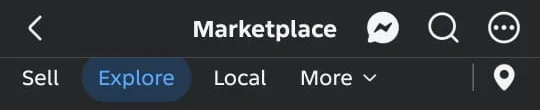

Full steps, screenshots and safety tips are in Facebook Marketplace wrong location.
Did it work? Results are centered on the place you chose.
Did Fix 2 solve it?
Great, you fixed it with Fix 2. Tell us it worked, or bookmark this page in case it happens again.
Fix 3: Using Facebook Lite? Some sort options aren’t there
Meta says sorting by distance and new listings is only in the Facebook app for iOS or Android, not Facebook Lite. Lite has its own, shorter options.
- In Lite, tap Menu, then Marketplace.
- Tap Search and enter what you’re looking for.
- Tap to select a location or distance, or tap Filters to sort by price.
- Tap Apply.
- Need the newest listings first? Use the main Facebook app instead, and follow Fix 1.
Did it work? You can see results for the area or price you chose.
Did Fix 3 solve it?
Great, you fixed it with Fix 3. Tell us it worked, or bookmark this page in case it happens again.
Fix 4: No results? Broaden the search or browse by category
Meta says you can find items by searching for something specific or by browsing by category. When a search finds nothing, a broader word or a category often does. (The search-word tips are our own advice.)
- Try a shorter or more general word: sofa instead of a model name, for example.
- Check the spelling, and try another common name for the item.
- Clear filters you set earlier, such as condition or delivery method. On a computer you can sort by Distance; in Facebook Lite you can choose a wider distance.
- Browse by category instead: on Android, tap More in the tabs below the Marketplace title; on iPhone, tap Categories.
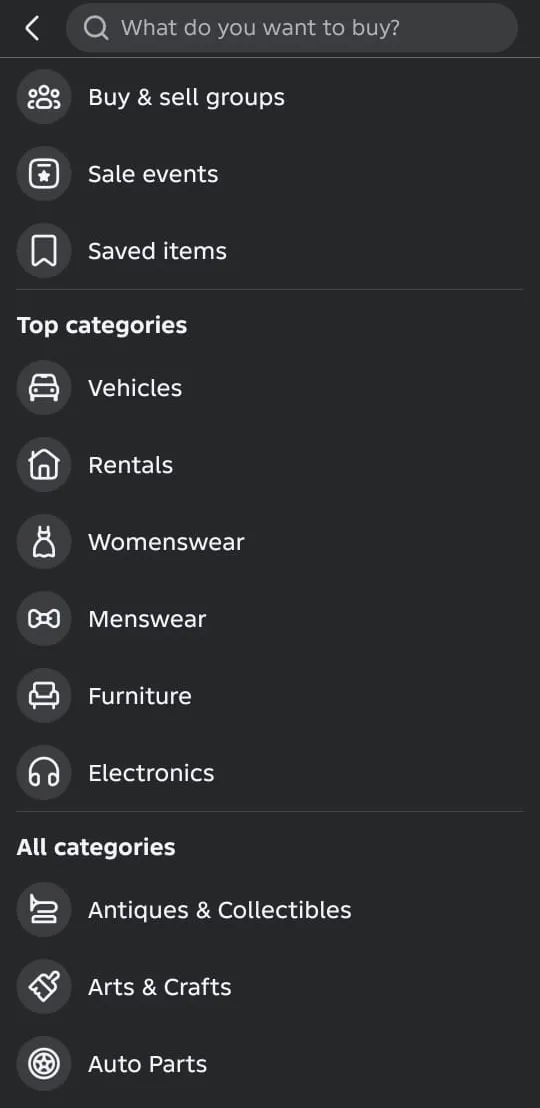
Did it work? You can see listings for the item you want.
Did Fix 4 solve it?
Great, you fixed it with Fix 4. Tell us it worked, or bookmark this page in case it happens again.
Fix 5: Search won’t load, or Marketplace is missing
If search spins, fails or Marketplace isn’t in your menu at all, the problem is the app, your connection or your Marketplace access rather than your search. (These are our general troubleshooting steps.)
- Can’t find Marketplace in the Menu, even under See more? Follow Facebook Marketplace not showing.
- Update the Facebook app, then close and reopen it, or try Marketplace on a computer.
- Still failing? Clear Facebook’s cache and try again.
- Report it: ☰ Menu > Help and support > Report a problem, then pick Marketplace on the Select product screen.
Did it work? Search loads results again.
Did Fix 5 solve it?
Great, you fixed it with Fix 5. Tell us it worked, or bookmark this page in case it happens again.
Marketplace sort and filter options on each device
These are the examples Meta gives on its help page. You may see more options than these.
| Device | Where | Examples Meta gives |
|---|---|---|
| Computer | Sort by, after you search | Suggested, Distance, Date listed |
| iPhone and Android app | Filters, then See items | Delivery method, Item condition, Date listed |
| Facebook Lite | Location or distance, or Filters, then Apply | Location, distance, price (no sorting by distance or new listings) |
How to know it worked
- New listings appear first when you sort by Date listed.
- Results are centered on your own area.
- Search loads results for common items.
Still not working? Your next steps
- Your own listing doesn’t show up in search? See Marketplace listing not showing.
- A deal looks too good to be true? Read Facebook Marketplace scams before you pay.
Official help routes
SocialAppFix can’t see or change your account. For account decisions, recovery and appeals, only the platform’s own tools can help. These links go to the official sites.
Frequently asked questions
How do I see the newest listings on Facebook Marketplace?
Search for something, then sort by Date listed. On a computer, click Sort by > Date listed. In the iPhone or Android app, tap Filters, choose Date listed, then See items.
How do I sort Marketplace by distance?
On a computer, search, then click Sort by > Distance. Meta says sorting by distance is available in the Facebook app for iOS or Android, but not in Facebook Lite. Its app steps don’t list Distance as a Filters example, so if you don’t see it there, set your Marketplace location to where you are instead.
Why can’t I sort by newest in Facebook Lite?
Meta says sorting by distance and new listings is only available in the Facebook app for iOS or Android, not Facebook Lite. In Lite you can choose a location or distance, or filter by price.
Why does Marketplace show items far away?
Your Marketplace location may be set to the wrong place, or your search area is wide. Change your location and sort by distance.
Did this solve your problem?
Your answer stays in your browser — nothing is sent or stored. The “tell us” link opens your own email app.
Out of date or didn’t work? Email us — never include passwords or codes.
Sources and how we checked this guide
We base steps on the platforms’ own help pages and the phone makers’ official guides. Menu names change often and can differ by device, app version and region. Where a platform page could not be independently read, we link it so you can check the current wording yourself.
- Sort by distance or new listings on Facebook Marketplace (external site, opens in a new tab)
- Change the location of your Facebook Marketplace listings (external site, opens in a new tab)
- Report That Something Isn’t Working on Facebook (external site, opens in a new tab)
Last reviewed 22 October 2026 by the SocialAppFix editorial team against the sources above. Next scheduled review: 20 April 2027. How we write and review guides.
What changed
- 22 October 2026: First published.
SocialAppFix is an independent guide and is not affiliated with or endorsed by Meta or Facebook. We never ask for passwords, login codes or payment to fix an account.